Everything you know, ready when it matters.
Add your notes, documents or code. Ask anything, practice and improve, and get help on calls where everyone agrees. For interviews, sales, meetings, presentations, support and study.
Version 0.10.2, 81.6 MB. Needs macOS 14.4 or later on a Mac with Apple silicon. Free to start. How to open it.
Version 0.10.2, 25.5 MB. Needs a 64-bit Windows PC (tested on Windows 11). Free to start. How to open it.
It follows the macOS and Windows apps and will need Ubuntu 24.04 LTS (64-bit) with PipeWire or PulseAudio. In the meantime you can start free in your browser.
Sign-up is open only in India today. AssistClue is coming soon to your country.
This computer isn't supported yet: the app runs on Mac and Windows. Practice and Ask work in your browser, and the FAQ lists the supported computers.
You are on a phone or tablet. Live sessions run on a computer, and your phone can show the answers as a second screen.
Three ways to use it
Knowledge, conversations and practice, from one set of notes
Everything starts from the material you add. Use it one way or all three.
- Knowledge
Ask your own material
Ask your documents, notes and code folders in plain words. Each answer names the file it came from, and code folders you keep locally are never uploaded.
Where answers come from - Conversation
Help while the question is asked
On a call where everyone agrees to AI help, the app hears both sides, spots each question and answers it from your notes while it is still being asked.
How a live session works - Practice
Rehearse with an AI interviewer
Answer questions drawn from what you added, typed or spoken, with feedback on each one before the real thing.
Practice for an interview
How it works
Practice before. Get answers during. Improve after.
One loop, built on your own notes: practice until you are ready, get help in the moment, then learn from what happened.
- Before
Practice on your own notes
Turn your notes into practice questions. Answer by typing, or by voice on the desktop app, and get feedback on every answer. It works in your browser, with a Top-up or the monthly Cloud plan.
- During
Get a short answer on the call
On a call or meeting where everyone agrees to AI help, AssistClue hears the question and shows a short answer from your notes, or from AI when your notes have none, always labeled.
- After
See what to improve
Review the questions you needed help with, replay them as practice, and watch your weak topics get stronger. A call saves nothing unless you choose to.
See it in action
The real app, not a mock-up
Every screen below is a real screenshot of AssistClue, light and dark.

Sources you can check
Every answer names the document it came from, and whether it left this computer.
Ask your material
Ask your documents a question, and open each source to read the passage it came from.
Private sessions
Choose Private and see exactly what left your computer, and why, in the receipt afterwards.
Answers on your phone
A second screen for the answers, encrypted end to end in a Private session.
Practice what you missed
Reality replay brings back the questions you needed help with in a live session, so you can practice them.
Use cases
For anyone who gets asked questions
Interviews, developers, presentations, client calls, support and study: pick the situation closest to yours.
- InterviewsRehearse with your own notes, then get cited help live where AI assistance is allowed.Learn more
- DevelopersAnswers from your own code folders, quoted with the file they came from.Learn more
- Presentations and proposalsRehearse the Q&A from your own talking points, figures and proposals.Learn more
- Client and sales callsProduct details, pricing and timelines, answered from your own notes.Learn more
- Support and remote assistanceThe step you need from your runbooks and help articles, with its source.Learn more
- Students and learnersTurn your class notes into questions, practice and a list of what to revise.Learn more
Why AssistClue
Why not just use a chat assistant?
A chat assistant answers what you type. AssistClue listens for the question in your live conversation and answers from your own material first, or from cloud AI when it has none, always labeled, and privately if you want.
General assistants are great for open-ended questions. Use them alongside AssistClue. See the full comparison
Privacy
Private when you need it
Choose Private for a session and the answers come from your computer alone.
Private sessions
Answers come from this computer only, and the session record stays on it.
Encrypted second screen
In a Private session, your phone gets the answers end-to-end encrypted. Our servers can't read them.
Privacy receipt
After a Private session, see exactly what left your computer, and why.
Consent, every time
Every live session starts with consent, and the app icon stays in your menu bar or tray. There is no hidden mode.
Pricing
Free on your documents. Pay for Private or Cloud AI.
A pass, a month or an hour, never a subscription. Nothing renews on its own.
Free
₹0
Add your material, search it and ask it questions. The first 15 days of Private and a 15-minute Live trial are free.
Private pass
₹99Scheduled from 2027: ₹198
Private live sessions and Ask that answer from your computer, for 30 days.
Monthly Cloud
₹999Scheduled from 2027: ₹1,998
Unlimited Live sessions for 30 days, with 10 hr of Cloud AI, Practice and notes.
Top-up
₹149Scheduled from 2027: ₹298
1 hr of Live AI on any plan: a labeled Cloud AI answer when your material has none.
Launch prices until 31 December 2026. Scheduled prices from 1 January 2027. AssistClue is available in India only. Prices are in Indian rupees (₹), include GST and are paid once. Nothing renews on its own. See the plans and what is free
FAQ
Questions people ask
Do the other people in the conversation know AI is being used?
They should, and AssistClue is built for that. Tell them at the start that you use an AI assistant for notes and answers. You confirm consent before every live session, its icon stays in your menu bar or tray while the app runs, and there is no hidden mode. Use it where AI help is allowed.
Is AssistClue an AI meeting assistant?
Yes, for live calls and meetings that allow AI help. On a live call it listens for the question, puts your notes first with their source, and can add a clearly marked cloud AI answer when your notes fall short. Afterwards you get a summary and a replay of what you got help with. It is not a note taker that records and minutes every meeting.
Where do the answers come from?
From your own material first: notes, documents and, on the desktop app, folders of code on your computer, each answer with its source. When your material has no answer, a Cloud AI answer follows, labeled as general knowledge, so you are never left with nothing. In a Private session AssistClue says "Not in your documents" instead.
What does Private mode keep on my computer?
In a Private session, answers come from this computer only and nothing readable leaves it. Pressing the Cloud AI button on one answer sends only that question and passages from notes you uploaded, and uses your Cloud AI allowance. The record stays on your computer. You still need the internet to sign in.
What is free, and what do I pay for?
Adding your material, searching it and answers found in it on your computer are free, as are your first 15 days of Private. After that, Private needs the Private pass, and Cloud AI, Practice included, needs a Top-up (1 hr of Live AI) or the monthly Cloud plan. The free Live trial covers Live and Ask, not Practice. Nothing renews.
Can I use it outside interviews?
Yes. Start a live session for any call or meeting where AI help is agreed, such as presentations, proposals, client calls or support, and get answers from your own material.
Get AssistClue on your computer
Practice for the next question, then have help ready when it comes.
Version 0.10.2, 81.6 MB. Needs macOS 14.4 or later on a Mac with Apple silicon. Free to start.
Your Mac checks with you the first time
Apple has not yet checked AssistClue, a new app, so macOS stops it on the first open with a message that it could not verify the app. Apple shows this for apps from outside the App Store until the developer signs them, and it goes away once ours is signed. If AssistClue came from our website, allow it once in System Settings.
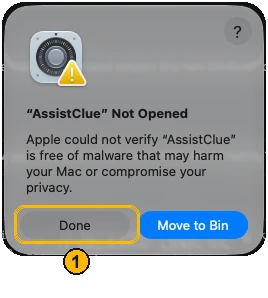
Step 1. Choose Done, not Move to Bin.
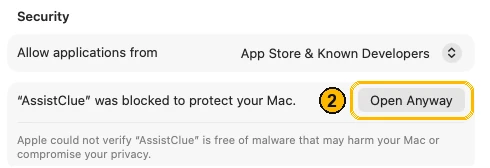
Step 2. Open System Settings, then Privacy and Security. Scroll to Security and choose Open Anyway.
Step 3. Confirm with your password or Touch ID, then choose Open. On macOS 14, right-click the app and choose Open instead.
After each update, macOS asks for the password you use to sign in to your Mac, so AssistClue can keep using your saved sign-in. Enter it and choose Always Allow. This stops once our Mac app is signed.
Version 0.10.2, 25.5 MB. Needs a 64-bit Windows PC (tested on Windows 11). Free to start.
Windows checks with you the first time
AssistClue is new, and our Windows code-signing certificate is not active yet. Until then, Windows SmartScreen warns you when you run the installer and calls the publisher unknown. Windows does this for new apps, and the warning stops once the certificate is in place. If you downloaded the installer from our website, two clicks get you past it.
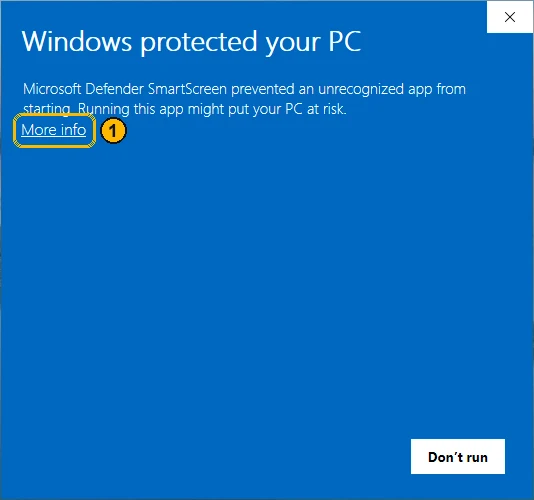
Step 1. Choose More info.
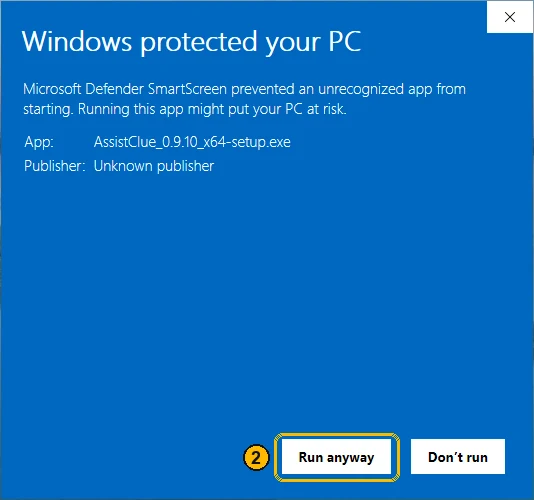
Step 2. Check that the app is the AssistClue setup file, then choose Run anyway.
It follows the macOS and Windows apps and will need Ubuntu 24.04 LTS (64-bit) with PipeWire or PulseAudio. In the meantime you can start free in your browser.
AssistClue is not signed by an identified developer yet, so your computer warns you the first time you open it. How to open it. Available in India only for now.
Tested on Macs with Apple silicon running macOS 14.4 or newer, and on Windows 11 (64-bit). Other versions, such as Windows 10, have not been tested and may have problems. You can try AssistClue on them; if something goes wrong, tell us. Questions or problems? Write to support@assistclue.com.