Help
Questions people ask about AssistClue
Short answers, grouped by topic. Each one links to the page that explains it in full.
- 43answers
- 5topics
The basics
What is AssistClue?
AssistClue is a desktop app that helps you answer questions well. Before a conversation you practice on your own notes and ask them questions. During a call or meeting where AI help is agreed, it hears the question and shows a short answer, from your notes with their source or a labeled cloud AI answer. Afterwards it shows what to improve.
Who is AssistClue for?
Anyone who gets asked questions: people preparing for interviews, developers explaining their systems, presenters and sales teams facing questions after a pitch, support teams working from runbooks, and students revising from their own notes.
Is AssistClue an AI meeting assistant?
Yes, for live calls and meetings that allow AI help. On a live call it listens for the question, puts your notes first with their source, and can add a clearly marked cloud AI answer when your notes fall short. Afterwards you get a summary and a replay of what you got help with. It is not a note taker that records and minutes every meeting.
Do I need a card to start?
No. Signing up asks for no payment details. Your account starts free and includes one 15-minute Live trial and 15 days of Private, so you can try live sessions before you pay for anything.
Which devices does it work on?
Live sessions run in the AssistClue desktop app for macOS and Windows; Linux is coming soon. Your phone or another browser can show the answers as a second screen. Practice, Ask and your notes also work in the browser.
Which systems does the app support?
A Mac with Apple silicon (M1 or newer) on macOS 14.4 or later, and a 64-bit Windows PC. We tested Windows 11; other versions, such as Windows 10, have not been tested; if one misbehaves, tell us on the Contact page. Intel Macs with the same macOS can install it too, but they have not been tested yet; older macOS versions are not supported. Linux is coming soon (Ubuntu 24.04 LTS with PipeWire or PulseAudio). AssistClue is available in India only for now.
How do I open the Mac app the first time?
The Mac app is not signed by an identified developer yet, so macOS warns you once. On macOS 15 or later: Open the app. When the warning appears, choose Done. Open System Settings, then Privacy & Security. Find the message "AssistClue was blocked", choose Open Anyway, confirm with your password or Touch ID, then choose Open. On macOS 14: Right-click the app, choose Open, then choose Open again.
Your Mac checks with you the first time
Apple has not yet checked AssistClue, a new app, so macOS stops it on the first open with a message that it could not verify the app. Apple shows this for apps from outside the App Store until the developer signs them, and it goes away once ours is signed. If AssistClue came from our website, allow it once in System Settings.
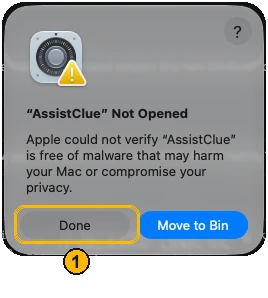
Step 1. Choose Done, not Move to Bin.
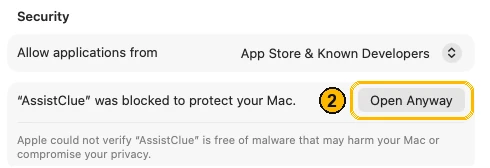
Step 2. Open System Settings, then Privacy and Security. Scroll to Security and choose Open Anyway.
Step 3. Confirm with your password or Touch ID, then choose Open. On macOS 14, right-click the app and choose Open instead.
After each update, macOS asks for the password you use to sign in to your Mac, so AssistClue can keep using your saved sign-in. Enter it and choose Always Allow. This stops once our Mac app is signed.
How do I open the Windows app the first time?
The Windows app is not signed by an identified developer yet, so Windows warns you once. If your browser warns about the download, choose Keep. Run the installer. When "Windows protected your PC" appears, choose More info, then Run anyway. If Windows Security removes the file, restore it from Protection history and follow the same steps. Tell us at support@assistclue.com and we will report it to Microsoft.
Windows checks with you the first time
AssistClue is new, and our Windows code-signing certificate is not active yet. Until then, Windows SmartScreen warns you when you run the installer and calls the publisher unknown. Windows does this for new apps, and the warning stops once the certificate is in place. If you downloaded the installer from our website, two clicks get you past it.
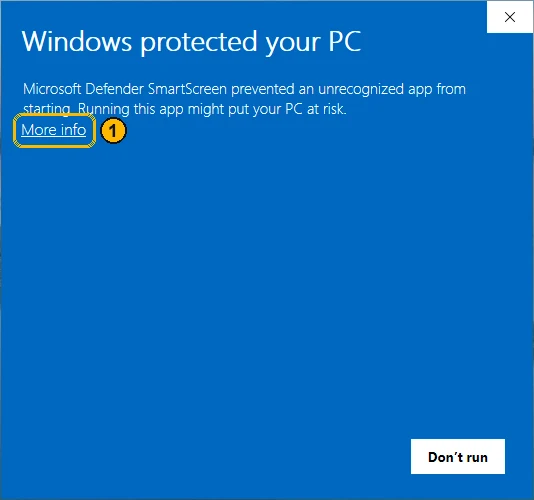
Step 1. Choose More info.
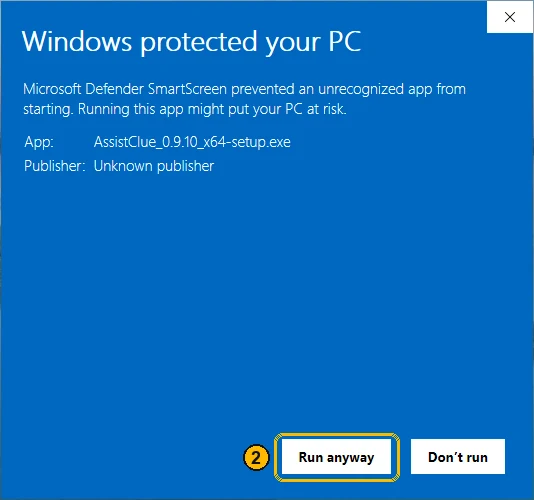
Step 2. Check that the app is the AssistClue setup file, then choose Run anyway.
Is there a phone or tablet app?
No. A phone or tablet browser can show the answers of a live session as a second screen, and can run Practice and Ask, but the live session itself runs in the desktop app on a computer. While the app's window is open on that computer, you can start a session from your phone or ask the computer a question.
Your material and the answers
Where do the answers come from?
From your own material first: notes, documents and, on the desktop app, folders of code on your computer, each answer with its source. When your material has no answer, a Cloud AI answer follows, labeled as general knowledge, so you are never left with nothing. In a Private session AssistClue says "Not in your documents" instead.
What files can I add?
PDF, Word (.docx), PowerPoint (.pptx), Excel (.xlsx), CSV, HTML, RTF, Markdown and plain text, up to 50 MB each and 100 at a time. A scanned page or a photo of one (PNG or JPEG) is read too, though a table in a scan can lose some cells. On the desktop app you can also add folders of code and documents that stay on your computer; scans in those folders are not read yet.
Which code languages does it understand?
In Live, answers about code are in beta. On the desktop app, code in TypeScript, Python, Go, Rust and Java is read function by function, so an answer points to the exact lines; other code files (JavaScript, C#, C++ and more) are searched as plain text.
Where are my notes stored?
You choose when you add them. Uploaded notes are stored in your account, so they work on the web and on your phone, and a Cloud AI answer can be written from them. Folders you keep on your computer are never uploaded. They are not sent to Cloud AI unless you allow it for that folder. This is off until you switch it on, and never applies in a Private session.
Can I check where an answer came from?
Yes. Each answer names the document it came from and says whether it left your computer. In Ask you can open a source to read the passage the answer was built on, so you never have to take it on trust.
Are my folders uploaded?
No. On the desktop app, folders you add are indexed on your computer, not uploaded. Confident lookups in that material are answered on your computer too, without a cloud model.
What is Practice, and what is Reality replay?
Practice asks you questions drawn from your own knowledge base and shows what to review. With Cloud AI it writes the questions and grades your answers. The app on your computer can also run it with no cloud AI, showing what your answer covered of your notes. Reality replay turns the questions you needed help with in a live session into practice.
Why not just use a general chat assistant?
A chat assistant answers what you type, from its own general knowledge. AssistClue listens for the question in your live conversation and answers from your material, with the source. General assistants are great for open-ended questions; use them alongside AssistClue.
Privacy and consent
Do the other people in the conversation know AI is being used?
They should, and AssistClue is built for that. Tell them at the start that you use an AI assistant for notes and answers. You confirm consent before every live session, its icon stays in your menu bar or tray while the app runs, and there is no hidden mode. Use it where AI help is allowed.
What is sent to the cloud AI?
Only when you choose a session that may use Cloud AI: the question and the matching passages from notes you uploaded are sent to our cloud AI provider to write the answer. Passages from a folder kept on your computer are sent only if you allowed Cloud AI to read that folder, which is off by default. A Private session sends none.
What if AI help is not allowed in my interview or exam?
Do not start a live session. AssistClue is built for conversations where everyone has agreed to AI help. Where it is not allowed, use Ask and Practice on your own notes beforehand, and go in prepared.
What does Private mode keep on my computer?
In a Private session, answers come from this computer only and nothing readable leaves it. Pressing the Cloud AI button on one answer sends only that question and passages from notes you uploaded, and uses your Cloud AI allowance. The record stays on your computer. You still need the internet to sign in.
Can my phone show the answers, and is that safe?
Yes. A phone or another browser can act as a second screen and shows the same answers as your computer, with the file and folder each one came from. In a Private session the answers sent to it are end-to-end encrypted: our servers pass them on but cannot read them, and the key travels in the QR code you scan. In other sessions, an answer from a folder kept on your computer shows there only as a note, unless you have let cloud AI read that folder.
Can my phone start a session on my computer?
Yes, while the AssistClue window is open on your computer. You choose the session on your phone and confirm there that the others have been informed. The first time, your computer asks you to allow it, and you can turn it off in its settings. The computer always shows that the session was started from another device, and a Private session's key still reaches a phone only through the code you scan on the computer.
From my phone, can I ask my computer something?
Yes, with its AssistClue window open. Your computer searches its own folders, with no AI, and sends back what it found. Passages from documents you uploaded, or from folders you let cloud AI read, show with their file and folder. Any other kept folder shows only as a note, and nothing from a kept folder is sent when your answers default to Private. The first time, your computer asks you to allow it, and it shows every question it was asked.
How can I see what left my computer?
The desktop app records every network request it makes. After a Private session, the Privacy receipt in the session summary shows what left your computer, and why.
Live sessions
Does it hear the other person on the call?
Yes. The desktop app captures your microphone and, once you confirm the other people know, the audio your computer plays, so both sides of a remote call or meeting are heard. The other side is labeled "Them" in the transcript.
How fast are the answers?
Built to appear while the question is still fresh: a passage from your notes shows first, and a written Cloud AI answer follows when a passage is not enough. Timing depends on your connection and the model, and we do not publish a fixed figure until it is measured on real sessions.
Is a call or meeting saved?
Not by default. For a call or meeting, the questions and answers are saved to your account only if you choose to, for History and practice. A Private session keeps its record on your computer.
Can I use it outside interviews?
Yes. Start a live session for any call or meeting where AI help is agreed, such as presentations, proposals, client calls or support, and get answers from your own material.
How does AssistClue help me prepare for in-person interviews and meetings?
Rehearse it for real. Start a mock interview with a friend or coach, in the same room or online, and get live answers from your own notes as they ask. Practice asks you questions drawn from your notes, and Ask checks any answer against your material with its source. Afterwards your history and progress show what to work on next.
Can I ask a question about something on my screen?
Yes, in a live session that may use Cloud AI (not in a Private session, because reading an image needs it). Screenshot questions use screenshot credits: the free trial includes 3, and each Top-up adds 25. The monthly plan includes 250 for its days.
Pricing and plans
What is free, and what do I pay for?
Adding your material, searching it and answers found in it on your computer are free, as are your first 15 days of Private. After that, Private needs the Private pass, and Cloud AI, Practice included, needs a Top-up (1 hr of Live AI) or the monthly Cloud plan. The free Live trial covers Live and Ask, not Practice. Nothing renews.
Is the free trial given to everyone, every time?
Each person gets it once: 15 Live minutes, 3 screenshot questions and 15 days of Private. Deleting an account and signing up again does not renew it, and throwaway email addresses do not get it. You can still buy a Private pass, a Top-up or the monthly plan.
What happens when my free days of Private end?
Private live sessions and Ask on your computer stop until you buy a Private pass (30 days) or the monthly plan. Everything you kept stays as it is, your folders and their switches keep working, and nothing is deleted.
What does the monthly Cloud plan include?
Unlimited Live sessions for 30 days, with no time limit per session, and unlimited answers from your files on this computer. It includes 10 hr of Cloud AI answers and 250 screenshot questions, used before any Top-up and not carried over; reading files and Practice with Cloud AI use the same Cloud AI allowance. You are never cut off mid-session: when it is used up, answers continue from your own material and you can add a Top-up. Private, Practice and notes are included. It does not renew.
Can I buy the Private pass and a Top-up together?
Yes: the 30-day Private pass and a Top-up of 1 hr of Live AI in one order, for ₹199 instead of ₹248 bought apart. Each part works as it does on its own: the pass's days start when you pay, or when a pass you already have ends, and the Top-up's time is added to your balance. It does not renew.
Is there a student price?
Yes: 20% off every plan and the Top-up for 3 months. On the Plans page, enter your college email (one ending in .ac.in or .edu); we email it a 6-digit code once and don't keep the address. Once you enter the code, every price you see is the student price. One college address works for one account.
How is live time counted?
Live AI time is used by the started minute while a live session runs, and the first minute is taken when it starts. Charging stops if there is no speech or activity for two minutes. A Private session uses no Live AI time, whether it runs in your free days, on a Private pass or on the monthly Cloud plan.
How long does Top-up time last?
60 days from your last Top-up, for all the Live AI time and screenshot questions you have left. Buy another Top-up before then and everything left carries into a new 60 days; what is left when they end is lost. We email you about a week before, and the date is under your balance in the app.
Does anything renew automatically?
No. A Private pass, a Top-up and the monthly plan are each bought once. The pass and the plan simply end after their days. You choose what to buy and when; nothing is charged again unless you buy again. There is no subscription to cancel.
Which currency are the prices in?
AssistClue is available in India only. Prices are in Indian rupees (₹), include GST and are paid once. Nothing renews on its own.
Is Practice free?
Practice on this computer runs in the app with no cloud AI. It is unlimited in your first 15 days of Private, then once a day, and unlimited again with the Private pass or the Cloud plan. Cloud AI practice is paid for by a Top-up or by the plan.
Is there a limit on Cloud AI answers?
There is no daily limit. Cloud AI answers in Ask, in live sessions and from a Private session's Cloud AI button use your Cloud AI allowance, which comes with the free trial, every Top-up and the monthly plan. Practice with Cloud AI uses it too, with a Top-up or the plan (not the trial). When it is used up, AssistClue says so, and you can buy a Top-up to continue. Answers found in your own material on your computer never use it.
Supported computers
- Apple siliconSupported: needs macOS 14.4 or later on a Mac with Apple silicon
- Intel MacsNot tested yet
- Windows 11 (64-bit)Supported: needs a 64-bit Windows PC (tested on Windows 11)
- Windows 10Not tested yet
- LinuxComing soon: needs Ubuntu 24.04 LTS (64-bit) with PipeWire or PulseAudio
Free disk space: about 1 GB for the on-device AI, about 1.2 GB with speech on this computer.
On another computer, a Chromebook, a phone or a tablet? Practice and Ask run in any modern browser. Start free in your browser
Something not working on your computer? Write to support@assistclue.com with your system and its version, and what you saw. We aim to reply within 2 working days.
Still have a question?
The quickest answer is to see it. The sample screens need no account.