Install guide
Installing AssistClue: each message, and what to choose
Your computer checks with you before it opens AssistClue for the first time. That is expected for a new app. Below is each message you may see on a Mac or a Windows PC, with a picture of the real screen and the button to choose.
Why your computer asks
Apple and Microsoft recognize who made an app through a paid developer certificate. AssistClue is new and does not have those certificates yet. We are getting them now, and the checks behind them can take a few weeks.
Until then, macOS and Windows warn you on the first open, and a Mac asks for your password after each update. These messages are about the missing certificate. They do not mean something was found in the app.
Once our apps are signed, the messages stop with the next update, and you do not need to do anything for that.
Meanwhile, download AssistClue only from assistclue.com. The app checks every update against our own signature before it installs it, and refuses one that does not match.
On a Mac
Your Mac checks with you the first time
Apple has not yet checked AssistClue, a new app, so macOS stops it on the first open with a message that it could not verify the app. Apple shows this for apps from outside the App Store until the developer signs them, and it goes away once ours is signed. If AssistClue came from our website, allow it once in System Settings.
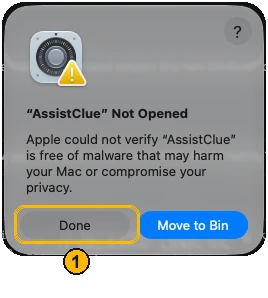
Step 1. Choose Done, not Move to Bin.
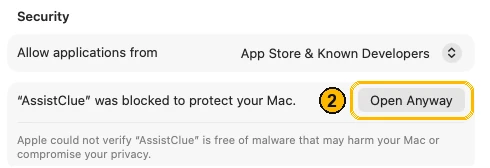
Step 2. Open System Settings, then Privacy and Security. Scroll to Security and choose Open Anyway.
Step 3. Confirm with your password or Touch ID, then choose Open. On macOS 14, right-click the app and choose Open instead.
After each update, your Mac asks for its password
Each new version has to ask before it can use what the previous one saved. Your Mac asks once for your saved sign-in and once for this computer's key. If you keep conversations on this Mac, it can ask a third time. AssistClue shows "Opening AssistClue" while it waits. Each time, type the password you use to sign in to your Mac and choose Always Allow. The password goes to macOS, never to us.
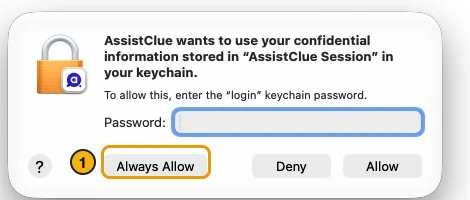
Step 1. The first question names "AssistClue Session", your saved sign-in. Type your Mac password, then press Always Allow.
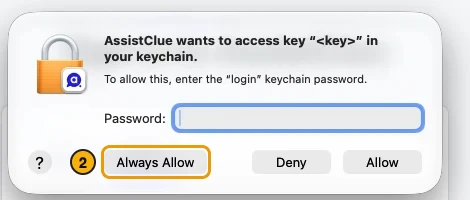
Step 2. The second asks for a key: the one that ties this Mac to your account. The same password and the same button: Always Allow.
Chose Deny by mistake? Nothing is lost. AssistClue asks you to sign in again, and macOS asks once more after the next update.
On a Windows PC
Windows checks with you the first time
AssistClue is new, and our Windows code-signing certificate is not active yet. Until then, Windows SmartScreen warns you when you run the installer and calls the publisher unknown. Windows does this for new apps, and the warning stops once the certificate is in place. If you downloaded the installer from our website, two clicks get you past it.
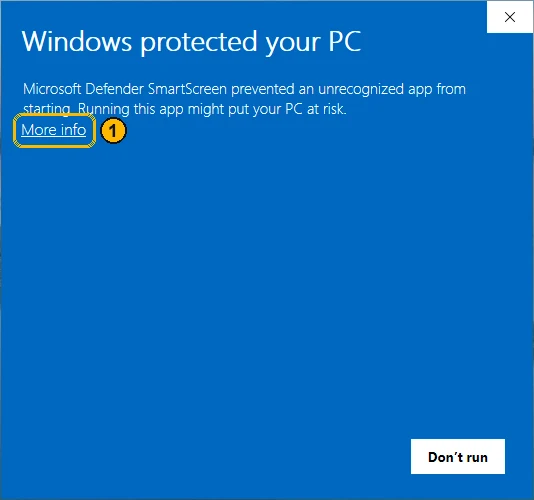
Step 1. Choose More info.
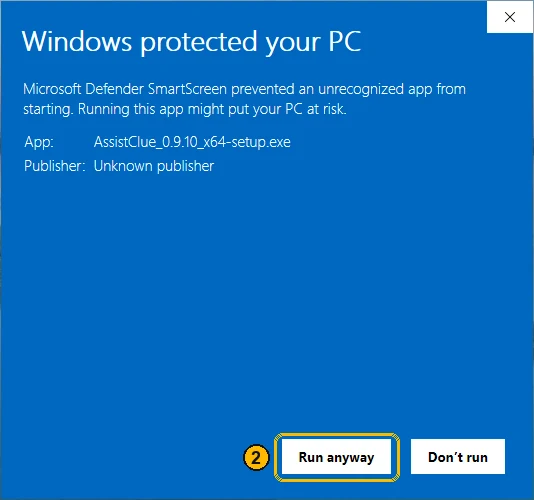
Step 2. Check that the app is the AssistClue setup file, then choose Run anyway.
If your browser or antivirus stops the file
Browsers and antivirus tools are careful with a new file that few people have downloaded and that no certificate vouches for. If one of them stops the AssistClue installer, it is reacting to that, not to anything it found inside. If you have any doubt, do not run it: write to us first.
Step 1. Check where the file came from: the download button on assistclue.com, which fetches it from downloads.assistclue.com. A copy from anywhere else, delete it.
Step 2. If your browser warns about the download, choose Keep.
Step 3. If Windows Security removed it: open Windows Security, then Virus and threat protection, then Protection history. Choose the AssistClue entry, then Actions, then Restore, and run the installer again.
Step 4. Another antivirus: open its quarantine or history, restore the AssistClue file, and allow it if the tool offers that.
Linux: not yet
The Linux app is built and passes our automated checks. But we have not yet confirmed the microphone and your computer's sound on a real Linux PC, and we do not offer what we have not tried.
Linux comes next, after this release, and its install steps will be on this page. Until then, you can use Practice and Ask on Linux in a web browser.
Which computers it runs on
- Apple siliconSupported: needs macOS 14.4 or later on a Mac with Apple silicon
- Intel MacsNot tested yet
- Windows 11 (64-bit)Supported: needs a 64-bit Windows PC (tested on Windows 11)
- Windows 10Not tested yet
- LinuxComing soon: needs Ubuntu 24.04 LTS (64-bit) with PipeWire or PulseAudio
Free disk space: about 1 GB for the on-device AI, about 1.2 GB with speech on this computer.
On another computer, a Chromebook, a phone or a tablet? Practice and Ask run in any modern browser. Start free in your browser
Something not working on your computer? Write to support@assistclue.com with your system and its version, and what you saw. We aim to reply within 2 working days.
More answers in the FAQ and on Privacy and security, or contact us.